Zapier is a handy application that allows you to drive your business more efficiently through automated workflows and integrations to thousands of applications. Zapier performs trigger and action tasks for a vast range of 3rd party online applications including Google Sheets, Pinterest, Shopify and or many more.
You may need to build dashboards with data from these third-party applications. It is recommended to aggregate your sales, customer support, marketing, financial data to create a single consolidated view of your business performance.
You can definitely use our Zapier connector to pull the data you need for your reporting from multiple sources. ClicData has native connectors to over 50 applications, but Zapier broadens the list of data sources you can connect to ClicData.
A great feature of these Zaps is that you can implement a webhook trigger which essentially means Zapier can send data via API to any endpoint.
Google Sheets Use Case
Let’s say we have a Google Sheet where we record information on a regular basis, every time we enter a new row we would like to send this new row to ClicData.
Step 1. Create your sheet
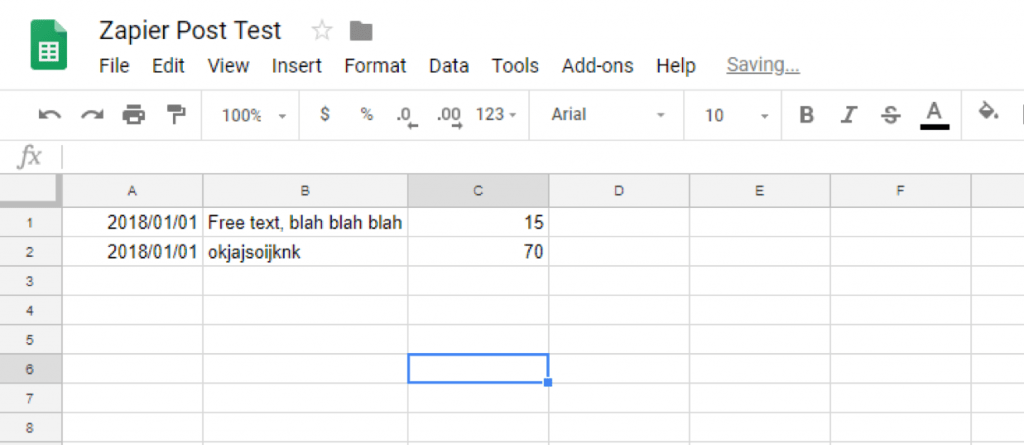
In this example, we have 3 columns with different data types (date, free text, value)
Step 2. Create custom data set in ClicData
Ensure that the same columns are replicated here as those in the Google Sheet, note the data types being used here:
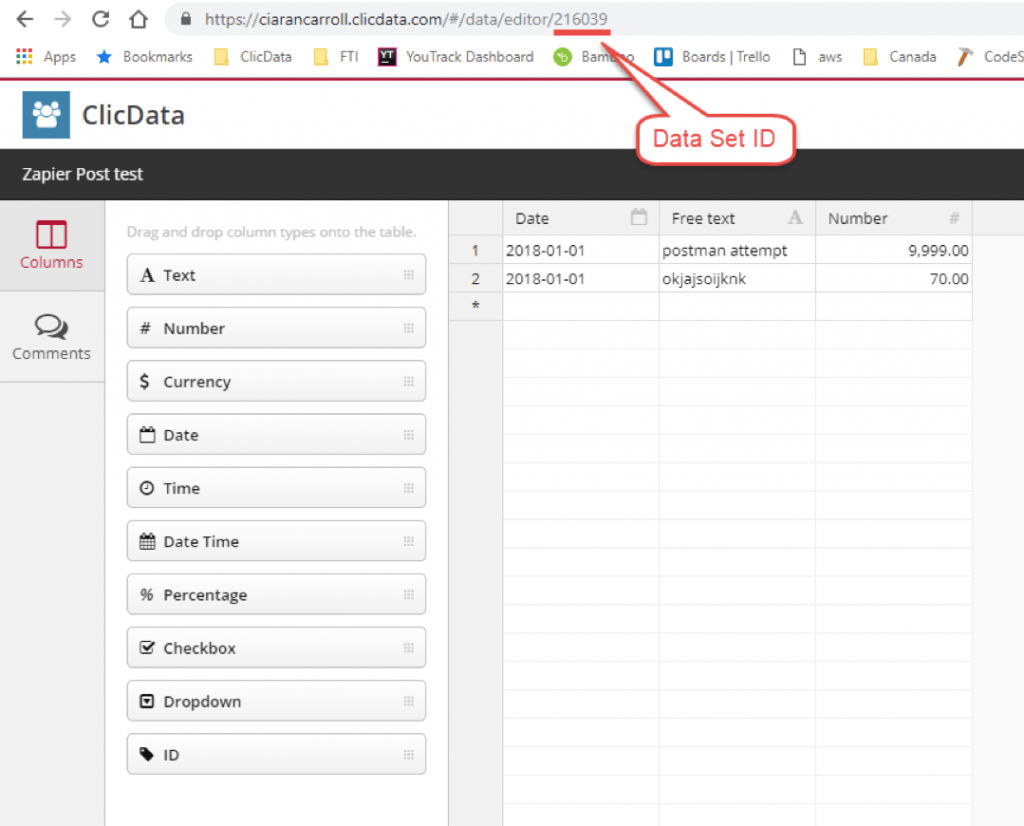
Date = Date type
Free text = Text type
Number = Number type
Take note of the Data Set ID we will need this later.
Step 3. Set up the Zapier trigger and action steps in Zapier
Select Google Sheets trigger, choose trigger on New Spreadsheet Row which means that whenever a row is added to the Google Sheet the Zap will execute.
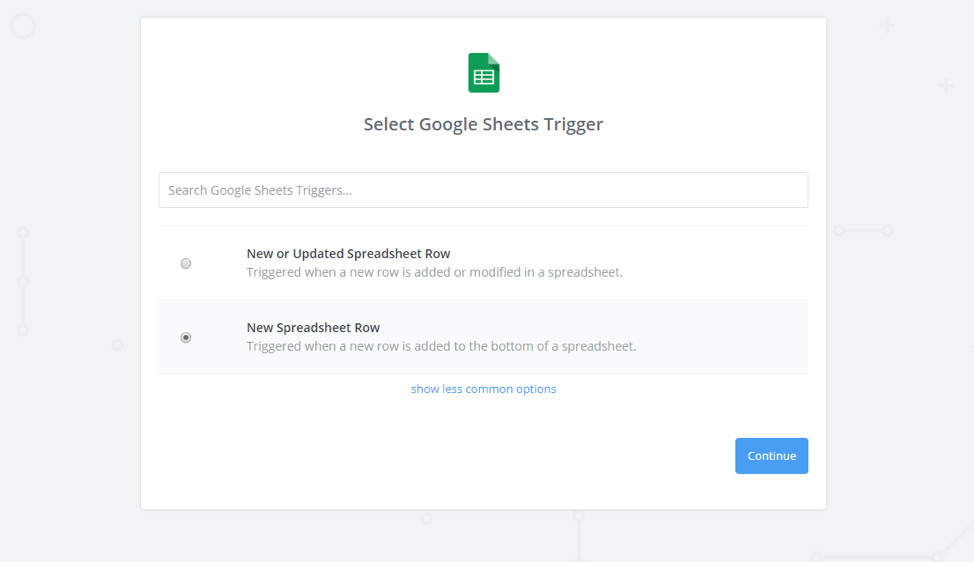
Follow the other steps: connecting to your Google account, selecting the file and sheet.
Set up Webhook Action
In your Zapier account, select Webhook from the available actions list.
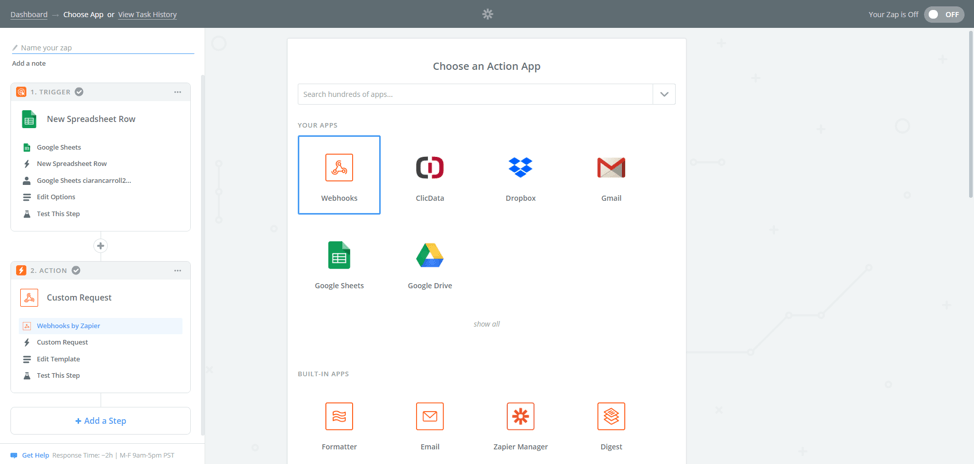
Choose Custom Request from the available list.
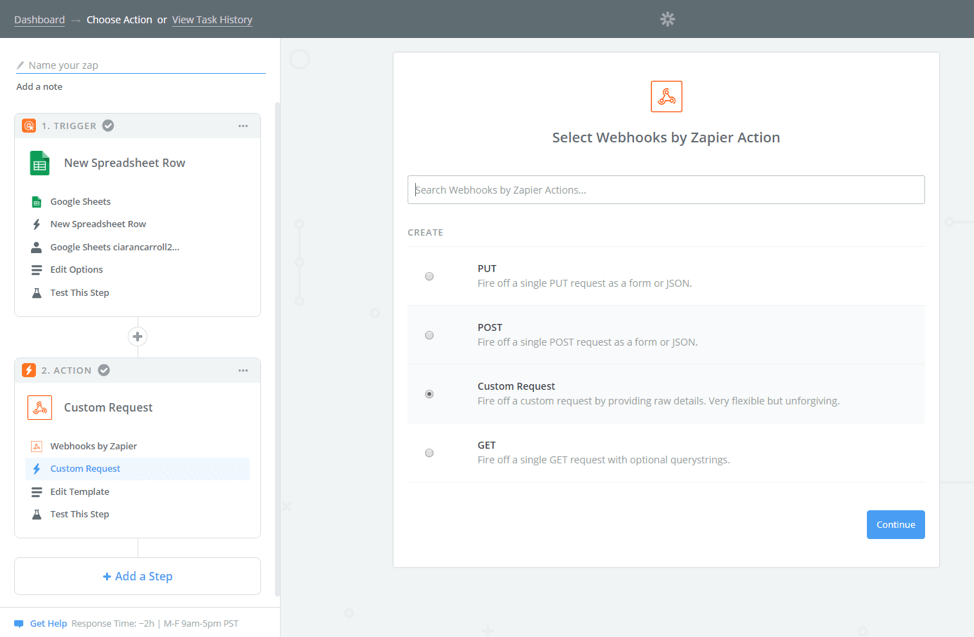
You will then be given the opportunity to define the API call to send the new row to ClicData, use the following parameters:
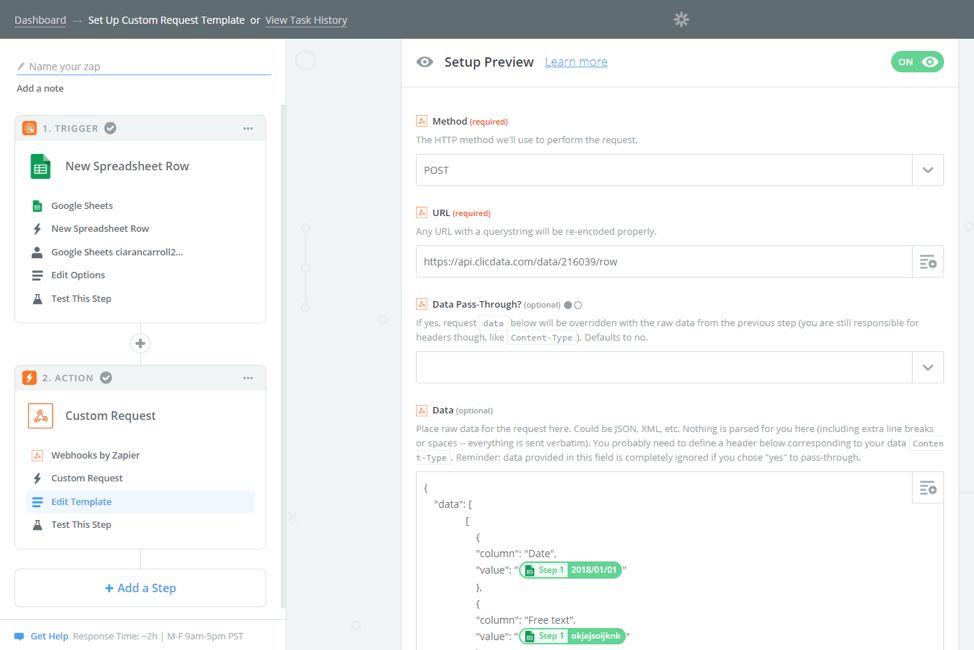
Method = POST
URL = https://api.clicdata.com/data/{Data Set ID}/row
Data Set ID is found in the URL of the custom data set (outlined earlier)
Data Pass-Through? = Blank
Data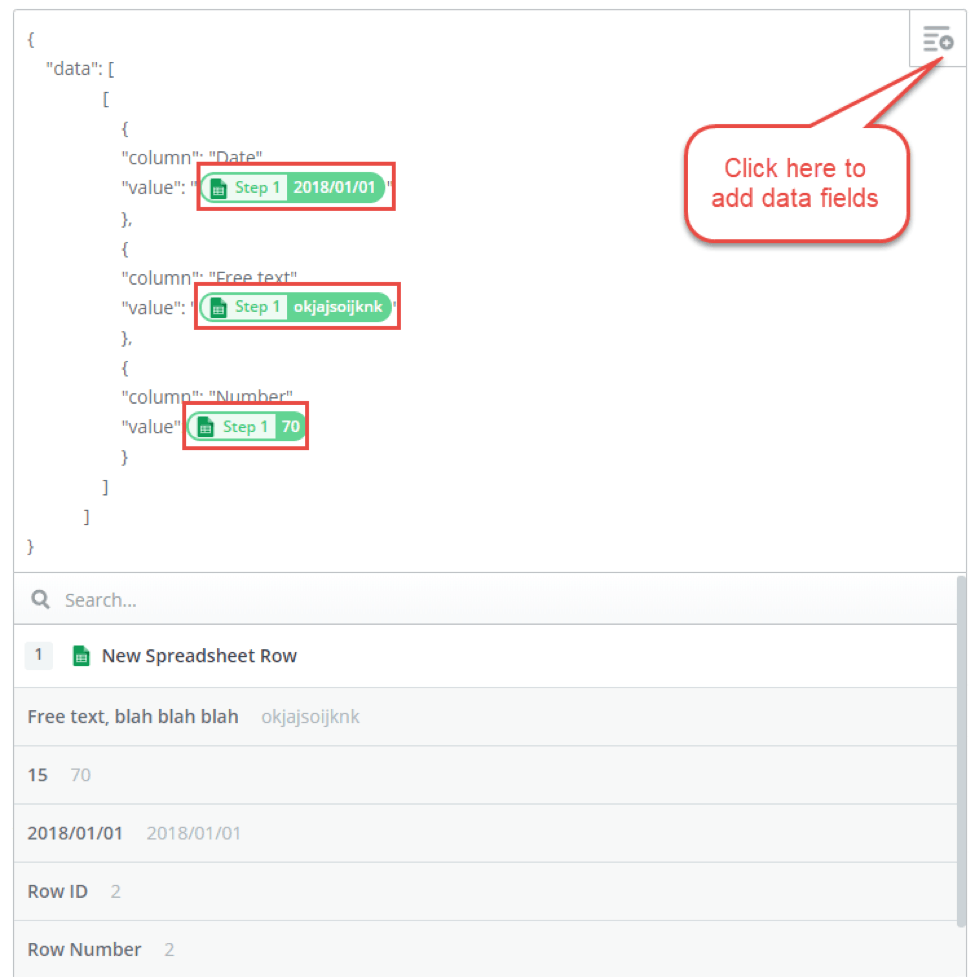
The data structure should follow this schema:
{
    "data": [
                    [
                        {
                            "column": "Column 1",
                            "value": Date Value"
                        },
                        {
                            "column": "Column 2 ",
                            "value": “Text Value”
                        },
                        {
                            "column": "Column 3",
                            "value":1234
                        }
                   ]
                ]
}
Side Note: date and text values are encapsulated in double quotes “ “
Unflatten = yes
Basic Auth = blank
Headers
Content-Type: application/json
Authorization: Basic {Encode64(ClientId:Encode64(username:password))}
You can use our API to trigger data refreshes, full or partial data loads, from any event outside of our platform with our data refresh API endpoints.
Set up schedules and rules in ClicData to automatically update your dashboards whenever an event occurs: you got a new lead, a new customer ticket is raised, a new demo is scheduled, a new invoice has been sent out… The possibilities are endless!
Side Note: your account will have a set amount of API calls per month depending on your subscription level, each time the Zapier task is completed an API call will be consumed.
You’re ready to go!
You now have all the keys to create insightful and real-time reports for everyone in your company. You can sign up for a free trial on ClicData and make more informed decisions today!